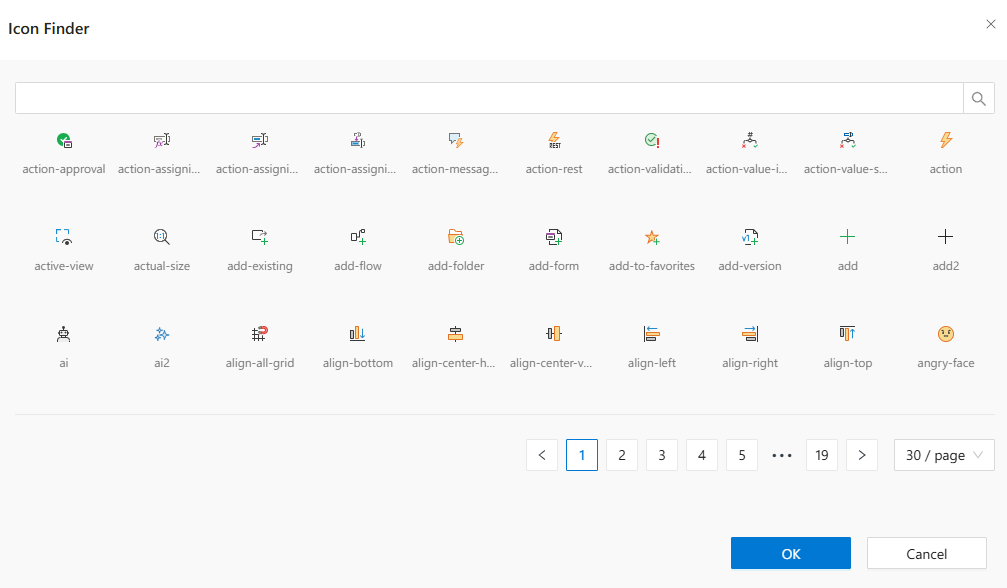
Events - Icon Finder Guide
This guide explains how to use the Icon Finder in the Events screen to select appropriate icons for your event buttons.
Overview
The Icon Finder allows you to assign visual icons to events in the IDE Flow Events screen. By selecting meaningful icons, you can make event buttons more intuitive and visually distinguishable for end-users.
Opening the Icon Finder
- Go to the
IDE Flowdesigner. - Open the
Eventstab for the relevant component (e.g., Flow Pauser, Approval Canceller). - Click on the
Iconfield within the selected event’sPropertiespanel. - Click on the
ellipsis (...)button to launch theIcon Finderwindow.
Using the Icon Finder
Search for Icons
- Use the
search barat the top to quickly find icons by name. - For example, typing
approvewill filter icons likeaction-approval.
Browse Icons
- Icons are displayed in a paginated list.
- You can navigate between pages using the pagination controls at the bottom.
Preview Icons
- Each icon displays a
visual previewalong with itssystem name(e.g.,action-approval,add-flow).
Select an Icon
- Click on the icon you want to use.
- The selected icon name will automatically populate the
Iconfield. - Click
OKto confirm your selection.